How to Install IPTV Smarters Pro on Firestick [2026 Ultimate Guide]
Learning how to install IPTV Smarters Pro on Firestick is your gateway to unlocking a universe of entertainment that goes far beyond standard streaming applications. If you’ve ever felt limited by regional content restrictions or the ever-increasing cost of multiple subscriptions, you’re in the right place. The Amazon Firestick is a powerful device, but its true potential is unleashed when paired with a versatile IPTV player like IPTV Smarters Pro and a premium content provider. This comprehensive guide will walk you through every step, ensuring a smooth and simple setup. With a provider like Talktomytv, you can transform your Firestick into an all-in-one entertainment hub, offering live sports, premium channels, and a massive video-on-demand library.
This guide provides three distinct, proven methods for installation, catering to all user levels. We will cover the entire process, from preparing your device to logging in with your service details and even troubleshooting common issues. By the end, you’ll be an expert at managing your IPTV experience on your Firestick.
What is IPTV Smarters Pro and Why Use It on Firestick?
Before diving into the installation process, it’s essential to understand what IPTV Smarters Pro is and why it’s the preferred choice for millions of Firestick users in the UK and worldwide. This knowledge will help you appreciate the power you’re about to unlock.
Understanding IPTV Technology
IPTV stands for “Internet Protocol Television.” Simply put, it’s a method of delivering television content over the internet, rather than through traditional terrestrial, satellite, or cable formats. This technology allows for greater flexibility, a wider range of channels, and advanced features like video on demand (VOD) and catch-up TV. However, to access IPTV content, you need two things: an IPTV subscription from a provider like Talktomytv and an IPTV player application to decode and display the stream. IPTV Smarters Pro is one of the most popular and reliable players available.
Key Features of IPTV Smarters Pro
IPTV Smarters Pro is not an IPTV service itself; it does not provide any content. It is a sophisticated media player designed to seamlessly integrate with your IPTV subscription. Here are some of the features that make it stand out:
- User-Friendly Interface: It boasts a clean, intuitive layout that is easy to navigate with the Firestick remote.
- Multi-Account Support: You can add multiple IPTV subscriptions from different providers if needed.
- EPG (Electronic Program Guide): A full TV guide that shows you what’s on now and what’s coming up, just like a traditional cable box.
- VOD and TV Series Integration: It neatly organizes movies and TV shows from your provider’s library, complete with posters and information.
- Catch-Up TV: If your provider supports it (like Talktomytv does), you can watch programs that have aired in the past few days.
- Parental Controls: Lock specific categories or channels to keep content family-friendly.
- External Player Support: While its built-in player is excellent, you can also use external players like VLC or MX Player if you prefer.
The Benefits of Using a Firestick for IPTV
The Amazon Firestick is the perfect device for IPTV for several reasons. It’s affordable, powerful enough to handle 4K streams, and runs on a modified version of Android, which allows for the “sideloading” of applications not available on the official Amazon Appstore. This sideloading capability is precisely what we’ll use to install IPTV Smarters Pro.
🎬 Ready to Stream with Talktomytv?
Premium IPTV with 24,000+ channels, 100,000+ movies, 4K quality. Instant activation.
Preparing Your Firestick for IPTV Smarters Pro Installation
Before you can install any third-party application, you must enable a specific setting on your Firestick. This process is often called “jailbreaking,” but it’s a misnomer. You are simply adjusting a setting to permit installations from outside the Amazon Appstore. It is perfectly safe and reversible.
Step 1: Navigate to Firestick Settings
From the Firestick home screen, use your remote to navigate to the gear icon (Settings) on the far right of the main menu bar.
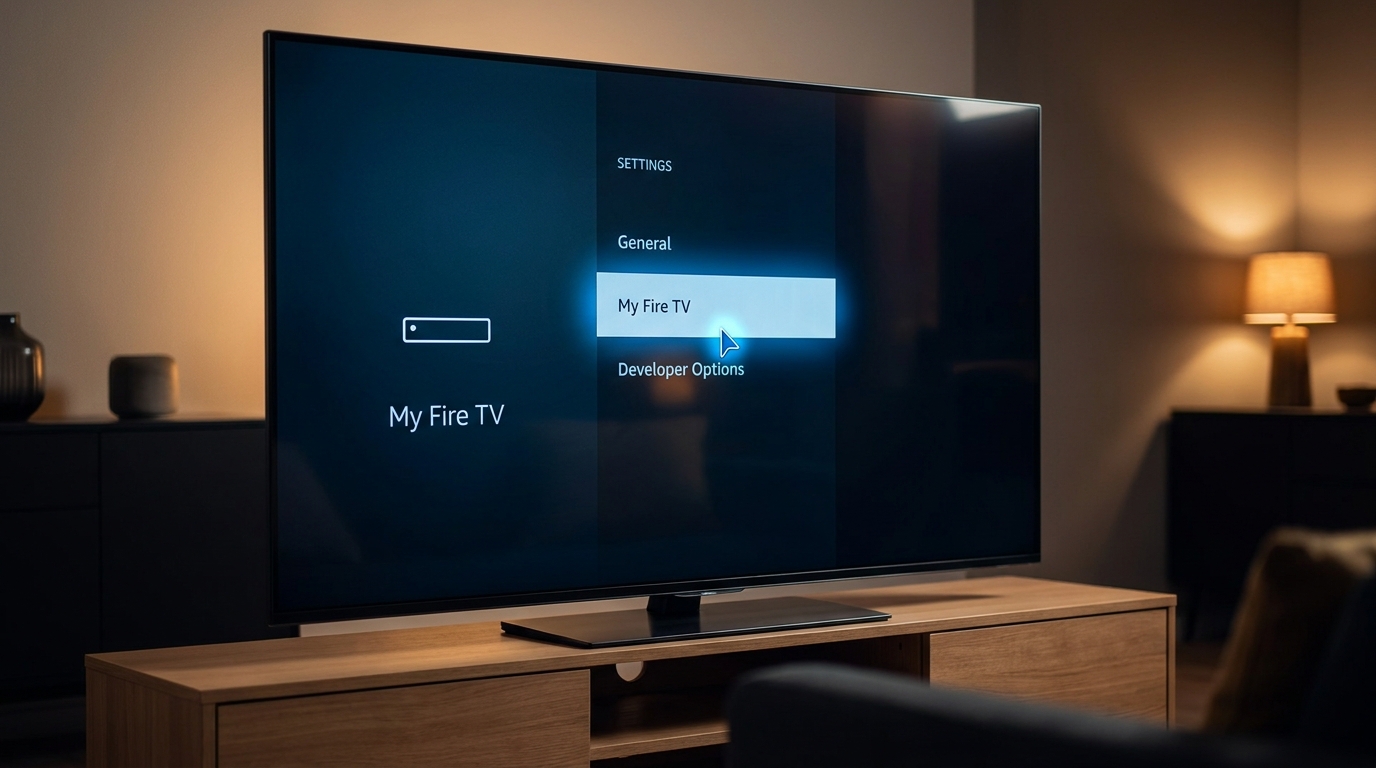
Step 2: Access ‘My Fire TV’
In the Settings menu, scroll down and select ‘My Fire TV’. This section contains information and settings related to your device.
Step 3: Open Developer Options
Inside ‘My Fire TV’, find and click on ‘Developer Options’. If you do not see ‘Developer Options’, you need to enable it first. To do this, click on ‘About’, then highlight ‘Fire TV Stick’ and press the select button on your remote 7 times. You will see a message saying, “No need, you are already a developer.” Go back one screen, and ‘Developer Options’ will now be visible.
Step 4: Enable Apps from Unknown Sources
Within Developer Options, you will see an option called ‘Apps from Unknown Sources’. Select it and turn it ON. A warning message will appear; simply click ‘Turn On’ to confirm. This setting is crucial as it allows us to proceed with the how to install IPTV Smarters Pro on Firestick process.
How to Install IPTV Smarters Pro on Firestick (3 Proven Methods)
With your Firestick prepared, you’re ready for the main event. We will detail three reliable methods to get IPTV Smarters Pro up and running. The first method is the most popular and recommended for its simplicity.
🎁 Try Before You Buy — 24-Hour Free Trial
Test the full service with all 24,000+ channels. No commitment required.
Method 1: Using the Downloader App (Recommended)
The Downloader app is an essential tool for any Firestick owner. It combines a web browser with a file manager, making it incredibly easy to download and install third-party apps (APKs).
- Install Downloader: If you don’t already have it, go to the Firestick home screen, select ‘Find’, then ‘Search’. Type “Downloader” and select the orange app from the results. Click ‘Download’ or ‘Get’ to install it.
- Launch Downloader: Open the Downloader app. You may see a welcome message or update notes; dismiss them to get to the main screen.
- Allow Permissions: The app will ask for permission to access files on your device. Click ‘Allow’.
- Enter the Download URL: The main screen features a prominent URL entry box. Use the on-screen keyboard to type in the direct download code for IPTV Smarters Pro. A popular and safe shortcode is 23568. Alternatively, you can type the full URL if you know it. Click ‘Go’.
- Download the APK: Downloader will connect to the server and begin downloading the IPTV Smarters Pro APK file. You can see the progress on the screen.
- Install the Application: Once the download is complete, the installation screen will automatically appear. Navigate down and click ‘Install’.
- Confirm Installation: The app will be installed in a few moments. When you see the “App Installed” notification, do not click ‘Open’ yet. Instead, click ‘Done’.
- Delete the APK File: Clicking ‘Done’ will take you back to Downloader. A pop-up will give you the option to delete the installation file (the APK). It is highly recommended to click ‘Delete’ to free up valuable storage space on your Firestick. The APK is no longer needed after installation.
- Access IPTV Smarters Pro: The app is now installed. You can find it by holding the ‘Home’ button on your remote, selecting ‘Apps’, and locating the IPTV Smarters Pro icon. You can move it to your home screen for easy access.
Method 2: Using the ES File Explorer App
ES File Explorer is another powerful file manager that can be used to sideload applications. If you have any trouble with Downloader, this is an excellent alternative.
- Install ES File Explorer: Search for “ES File Explorer” in the Amazon Appstore and install it on your Firestick.
- Launch the App: Open ES File Explorer and accept any permissions it requests.
- Navigate to the Downloader Tool: On the main screen, you’ll see several icons. Find and click on the ‘Downloader’ icon (it may also be listed under ‘Tools’).
- Add a New Download: At the bottom of the screen, click the ‘+’ or ‘New’ button to add a new download task.
- Enter the URL: In the ‘Path’ field, enter the direct download URL for the IPTV Smarters Pro APK. In the ‘Name’ field, you can simply type “Smarters Pro”. Click ‘Download Now’.
- Open and Install the File: The app will download the file. Once finished, click ‘Open File’, which will prompt the installation process. Click ‘Install’ to begin.
- Complete Installation: Follow the on-screen prompts to complete the installation. Once done, you can delete the source APK file from within ES File Explorer to save space.
Method 3: Using a PC with Apps2Fire
This method is for users who are more comfortable using their computer or have difficulty typing URLs with the Firestick remote. It involves pushing the app from an Android phone to your Firestick.
- Enable ADB Debugging: On your Firestick, go to Settings > My Fire TV > Developer Options and turn ON ‘ADB debugging’.
- Find Your Firestick’s IP Address: Go to Settings > My Fire TV > About > Network. Note down the ‘IP Address’.
- Install Apps2Fire: On an Android phone connected to the same Wi-Fi network, go to the Google Play Store and install the “Apps2Fire” app.
- Download the APK: On the same phone, use a web browser to download the IPTV Smarters Pro APK file and save it to your phone’s storage.
- Connect to Firestick: Open Apps2Fire on your phone. Go to the ‘Setup’ tab and enter the IP address of your Firestick. Click ‘Save’. The app should connect.
- Upload the App: Go to the ‘Upload Apps’ tab. Find the IPTV Smarters Pro APK file you downloaded and select it. The app will be transferred and installed on your Firestick automatically.
Setting Up Your Talktomytv Subscription with IPTV Smarters Pro
Now that you have successfully learned how to install IPTV Smarters Pro on Firestick, the next step is to connect it to a high-quality IPTV service. A player is useless without content, and this is where Talktomytv shines, offering a stable, feature-rich service that perfectly complements the app.
Finding Your M3U URL or Xtream Codes API Details
After you subscribe to a Talktomytv plan, you will receive a welcome email. This email is crucial as it contains your login credentials. You will typically receive either an M3U Playlist URL or, more commonly, Xtream Codes API details (Username, Password, and Server URL). We strongly recommend using the Xtream Codes API for the best experience, as it automatically loads your TV guide (EPG) and VOD library.
Step-by-Step Login Process
- Launch IPTV Smarters Pro: Open the app on your Firestick.
- Accept Terms of Use: On the first launch, you will need to accept the terms of use.
- Add New User: Click the ‘Add User’ or ‘+’ button to add your subscription details.
- Choose Login Method: You will be presented with two main options: ‘Load Your Playlist or File/URL’ and ‘Login with Xtream Codes API’. Select ‘Login with Xtream Codes API’.
- Enter Your Details: Carefully enter the details from your Talktomytv welcome email into the four fields:
- Any Name: This can be anything you like (e.g., “Talktomytv”).
- Username: Enter your provided username exactly.
- Password: Enter your password exactly (it is case-sensitive).
- URL: Enter the server URL provided.
- Add User: Double-check all details for typos, then click ‘Add User’.
- Start Watching: The app will begin downloading channels, movies, and EPG data. Once complete, you will be taken to the main dashboard, where you can select Live TV, Movies, or Series. Congratulations, you’re all set!
Why Talktomytv is the Best Choice for IPTV Smarters Pro
While IPTV Smarters Pro works with any provider, the quality of your viewing experience is 100% dependent on the service you connect it to. Free or cheap providers often lead to endless buffering, missing channels, and no support. Talktomytv is a premium service designed for performance and reliability.
Comparison: Talktomytv vs. Generic Providers
| Feature | Talktomytv | Generic / Free Providers |
|---|---|---|
| Stream Quality | 4K & FHD Standard | SD, Unreliable HD |
| Channel Selection | 20,000+ Premium & International | Limited, Unstable Channels |
| VOD Library | Full Netflix, Prime, Disney+ Catalogs | Outdated, Small Selection |
| Support | 24/7 Live Chat & Ticket | Non-existent or Slow Email |
| Uptime | 99.9% Guaranteed | Frequent Buffering/Downtime |
| Advanced Features | Catch-Up TV, EPG, PPV Included | Basic Streaming Only |
Troubleshooting Common IPTV Smarters Pro Issues on Firestick
Even with the best setup, you might occasionally run into minor issues. Here’s how to solve the most common problems users face when using IPTV Smarters Pro on a Firestick.
Buffering or Freezing Streams
- Check Your Internet Speed: A stable connection of at least 25-30 Mbps is recommended for smooth HD/4K streaming.
- Use a Wired Connection: If possible, connect your Firestick using an Ethernet adapter instead of Wi-Fi for a more stable connection.
- Restart Your Equipment: Power cycle your Firestick, router, and modem by unplugging them for 60 seconds.
- Change Video Player: In IPTV Smarters Pro settings, try switching the player from Hardware to Software decoder, or vice versa.
“No Information” or EPG Not Loading
If your TV guide is empty, go to the IPTV Smarters Pro settings and find the option to ‘Refresh TV Guide’ or ‘Reload EPG’. If that doesn’t work, it might be a temporary server-side issue. If it persists, ensure your Xtream Codes API details were entered correctly, as this is how the EPG data is fetched from your Talktomytv account.
Login Errors or Invalid Credentials
This is almost always due to a typo. Usernames and passwords are case-sensitive. Carefully re-enter the details from your welcome email. Avoid using autofill. If you’re certain the details are correct, contact our support team via the FAQs page for assistance.
App Crashing or Not Opening
If the app becomes unstable, you can try clearing its cache. Go to Firestick Settings > Applications > Manage Installed Applications > IPTV Smarters Pro. From there, select ‘Clear Cache’ and then ‘Force Stop’. Relaunch the app. If the problem continues, the ultimate fix is to uninstall and then reinstall the application using one of the methods described above.
By following this guide, you now know everything required for how to install IPTV Smarters Pro on Firestick and pair it with a superior streaming service. The combination of a powerful Firestick, a versatile player, and a premium subscription from Talktomytv provides an unparalleled entertainment experience. Don’t settle for less; unlock the full potential of your device today. Ready to get started? Sign up for a from Talktomytv and seee the difference for yourself!
References
Choose Your Talktomytv Plan
All plans include instant activation, 24/7 support, and a money-back guarantee.
Frequently Asked Questions
Is IPTV Smarters Pro free to use on Firestick?
Yes, the IPTV Smarters Pro application is completely free to download and use. However, it is only a media player. To watch any content, you need a separate subscription from an IPTV provider like Talktomytv, which provides the channels, movies, and TV shows.
What’s the difference between IPTV Smarters and IPTV Smarters Pro?
IPTV Smarters Pro is the newer, more feature-rich version of the original IPTV Smarters app. It includes an improved user interface, multi-screen capabilities, picture-in-picture support, and overall better performance. We always recommend installing the ‘Pro’ version for the best experience.
How do I update IPTV Smarters Pro on my Firestick?
Since IPTV Smarters Pro is sideloaded, it won’t update automatically through the Amazon Appstore. To update, you simply need to follow the same installation process (Method 1 with the Downloader app is easiest) using the URL for the new version. The new version will install over the old one, keeping your settings and login details intact.
Why isn’t my Talktomytv subscription working after I install IPTV Smarters Pro on Firestick?
The most common reason is a simple typo in your login credentials. Double-check the username, password, and server URL from your welcome email, as they are case-sensitive. Also, ensure your Talktomytv subscription is active. If you’ve confirmed both and still have issues, our 24/7 support team is ready to help.
Is it legal to install IPTV Smarters Pro on a Firestick in the UK?
Yes, it is completely legal to install the IPTV Smarters Pro application on your Firestick, as it is just a media player. The legality of IPTV depends entirely on the provider you use. Subscribing to a legitimate service like Talktomytv, which pays for content licenses, ensures you are streaming legally and ethically.