Understanding IPTV and Roku: A Perfect Match?
The Roku Operating System Explained
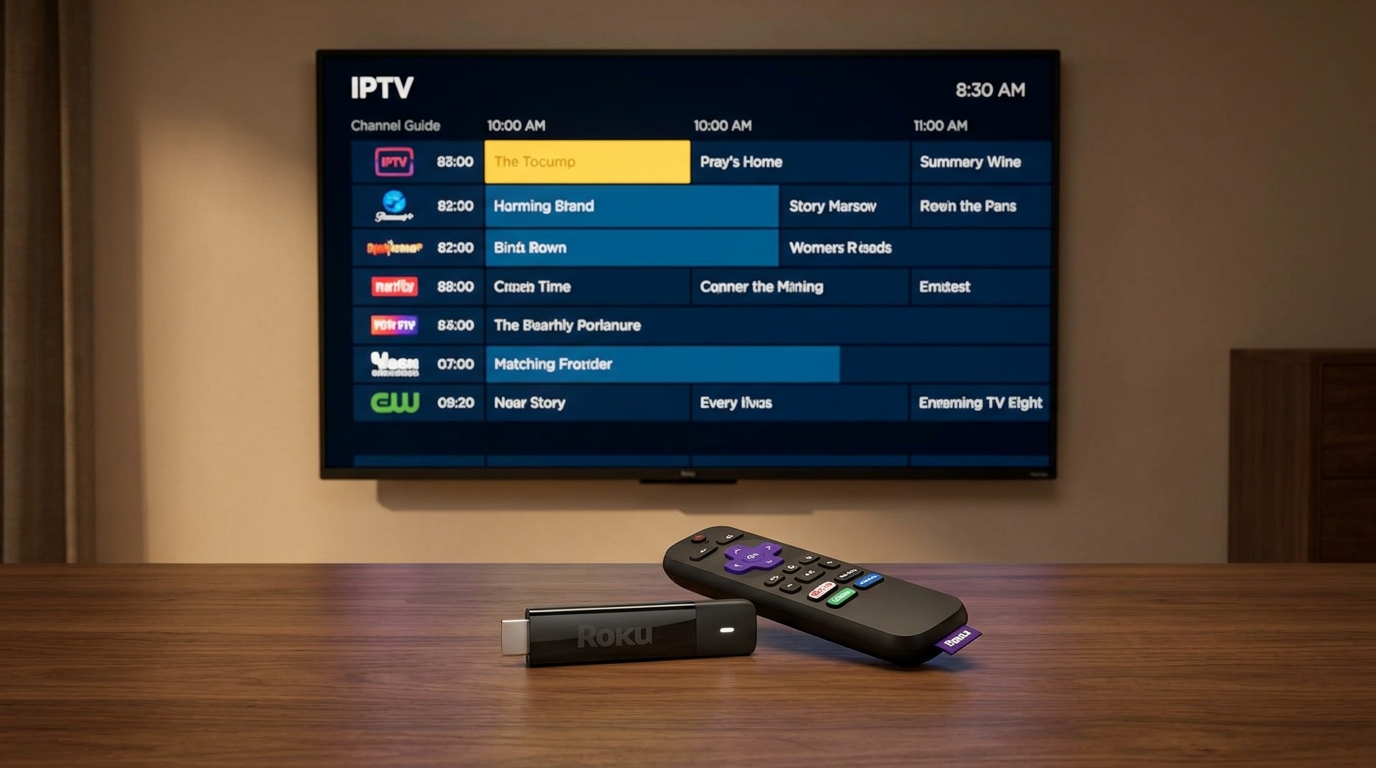
Roku has become a household name in the UK for its simple, user-friendly streaming devices. The Roku Streaming Stick, Roku Express, and Roku TV models all run on a proprietary operating system called Roku OS. This platform is designed as a ‘closed garden’ ecosystem, meaning Roku maintains strict control over the applications available in its official Channel Store. While this ensures a level of quality and security, it also means that many third-party applications, including most dedicated IPTV players, are not officially available for direct download. This is the primary reason why you cannot simply search for and install a generic IPTV app on your device. However, this limitation doesn’t mean you can’t enjoy a premium IPTV experience on your big screen. It simply requires the right service and the right method.
Why Direct IPTV Apps are Scarce on Roku
The absence of native IPTV apps on the Roku Channel Store stems from Roku’s content policies and the nature of IPTV services. Roku prioritises partnerships with mainstream content providers like Netflix, BBC iPlayer, and Disney+. Many IPTV services operate in a grey area or lack the corporate structure to forge such official partnerships. Therefore, to unlock the full potential of your Roku device for live international TV, sports, and movies, you need a flexible and powerful IPTV provider like Talktomytv, combined with a smart setup method that leverages your Roku’s built-in capabilities. This guide will walk you through the definitive process.
🎬 Ready to Stream with Talktomytv?
Premium IPTV with 24,000+ channels, 100,000+ movies, 4K quality. Instant activation.
What to Look For in the Best IPTV Service for Roku?
When your goal is to stream IPTV on a Roku device, the quality of the service provider is paramount. The ‘app’ becomes less important than the service powering the streams. Here are the critical factors that define the best experience, all of which are cornerstones of the Talktomytv service.
Stream Quality and Stability
The entire point of watching on a large TV screen is to enjoy a crystal-clear picture. Look for a service that provides consistent Full HD (1080p) and 4K streams for premium channels. Equally important is stability. The service must have robust server infrastructure to prevent buffering and freezing, especially during major live events like a Premier League match or a PPV boxing night. Talktomytv invests heavily in its network to ensure a smooth, buffer-free experience.
Extensive Channel and VOD Library
A top-tier IPTV service should offer a comprehensive selection of content. This isn’t just about quantity; it’s about quality and variety. Your ideal provider should offer:
- Live UK & US Channels: All the standard terrestrial channels plus premium offerings like Sky Sports, Sky Cinema, BT Sport (now TNT Sports), HBO, and Showtime.
- International Content: Access to channels from over 50 countries, catering to a diverse audience.
- Live Sports Coverage: Unrestricted access to every major league and event, including the Premier League (3pm kick-offs), Champions League, F1, UFC, NFL, and NBA.
- VOD Catalogue: An integrated library that includes the full catalogues of Netflix, Prime Video, and Disney+, updated weekly.
EPG, Catch-up, and User-Friendly Features
A modern viewing experience demands modern features. An Electronic Programme Guide (EPG) is essential for navigating thousands of channels. The ability to see what’s on now and next is a basic requirement. Furthermore, a Catch-up TV feature, which allows you to watch anything you’ve missed from the last 7 days, provides incredible flexibility. Talktomytv offers a clean, fast-loading EPG and comprehensive 7-day catch-up on most major channels.
Multi-Device Compatibility
While this guide focuses on Roku, the best IPTV service should work seamlessly across all your devices. Your subscription should be usable on your smartphone (iOS/Android), tablet, computer (Windows/macOS), and dedicated streaming devices like Firestick or Android TV boxes. This ensures you get maximum value from your subscription, whether at home or on the go. Talktomytv is compatible with virtually every device or player, giving you total freedom.
The Definitive Solution: Using Talktomytv on Your Roku Device
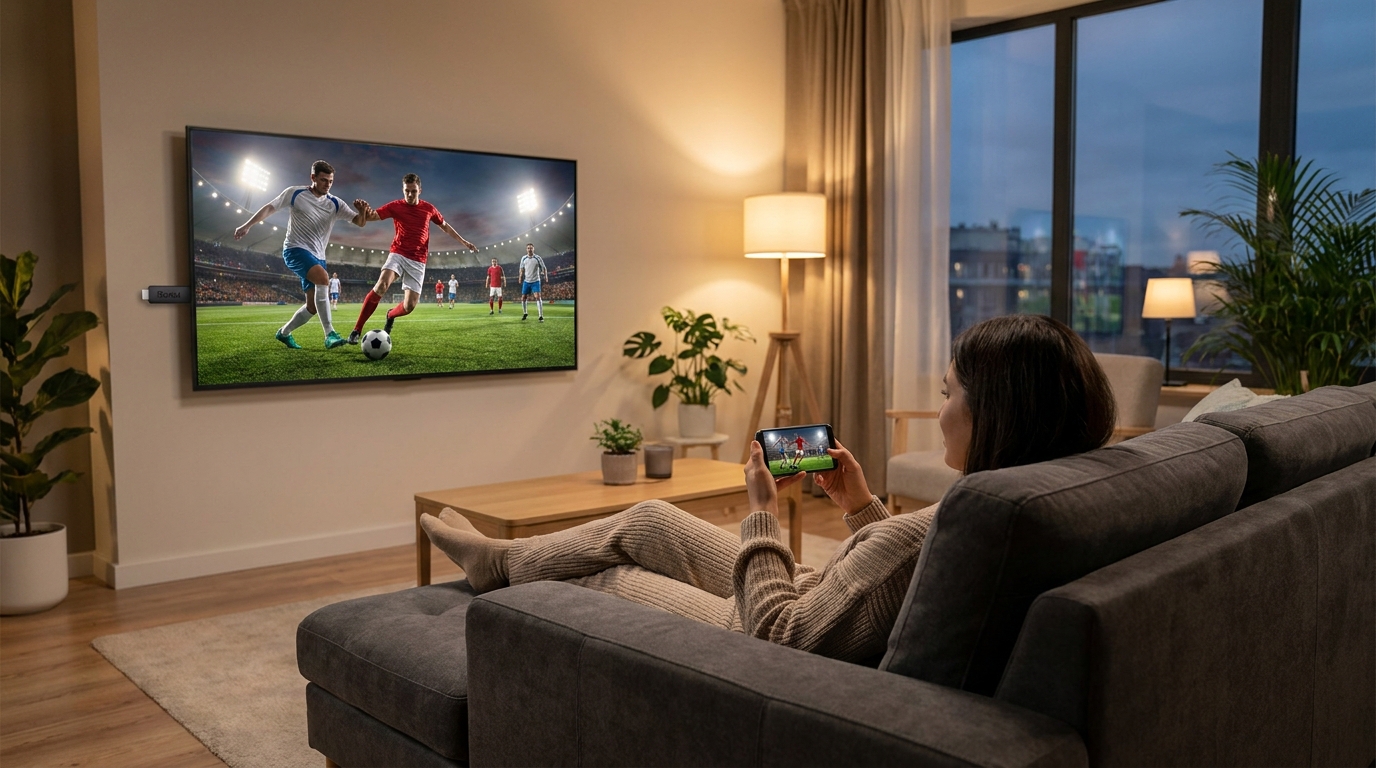
Since you cannot download a dedicated best IPTV app for Roku, the most reliable and effective method is to use your Roku as a screen and another device (like your smartphone or laptop) as the controller. This technique is called Screen Mirroring or Screencasting, and it’s built into most modern devices and fully supported by Roku.
🎁 Try Before You Buy — 24-Hour Free Trial
Test the full service with all 24,000+ channels. No commitment required.
Step 1: Get Your Talktomytv Subscription
Before you can stream anything, you need access to the content. The first step is to choose a Talktomytv plan. We offer flexible options to suit every need, and you can even start with a free trial to see the service for yourself. Once you subscribe, you will receive your login credentials. You will use these to log into an IPTV player app on your phone or computer, which you will then mirror to your Roku.
Step 2: Set Up Screen Mirroring to Your Roku
This process is simple and requires both your Roku device and your casting device (phone, tablet, or PC) to be connected to the same Wi-Fi network.
For Android Users:
- Ensure your Roku is powered on and on the home screen.
- On your Android phone or tablet, pull down the notification shade to access the Quick Settings panel.
- Look for an icon labelled ‘Smart View’, ‘Screen Cast’, ‘Miracast’, ‘Quick Connect’, or ‘Screen Mirroring’. The name varies by manufacturer.
- Tap the icon. Your phone will scan for available devices on your network.
- Select your Roku device from the list.
- A prompt may appear on your TV screen. Using your Roku remote, select ‘Allow’ or ‘Always Allow’.
- Your phone’s screen will now be mirrored on your TV. Open your preferred IPTV player app, log in with your Talktomytv credentials, and start watching. The video and audio will play through your TV.
For Windows PC Users:
- On your Windows 10 or 11 PC, click the Notification icon in the bottom-right corner of the taskbar or press Windows Key + A.
- Click on the ‘Connect’ tile. If you don’t see it, click ‘Expand’.
- Your PC will search for wireless display and audio devices.
- Select your Roku from the list of devices.
- Follow any on-screen prompts to allow the connection.
- Your PC desktop will now be mirrored to the TV. Open your IPTV player on your PC (such as VLC or a dedicated IPTV app), and your stream will appear on the big screen.
For iOS (iPhone/iPad) and macOS Users:
Roku devices now include support for Apple AirPlay 2. This makes casting from an Apple device incredibly easy.
- Make sure AirPlay is enabled on your Roku. Go to Settings > Apple AirPlay and HomeKit and ensure it’s turned on.
- On your iPhone or iPad, open the app you are using for Talktomytv.
- Start playing a channel or movie. Look for the AirPlay icon (a rectangle with a triangle at the bottom).
- Tap the icon and select your Roku device from the list.
- The stream will instantly begin playing on your TV.
This screen mirroring method is the most effective way to use Talktomytv with your Roku, transforming it into a powerful IPTV receiver. For more detailed instructions, you can always visit our page..
Why Talktomytv is the Ultimate Choice for UK Entertainment
Choosing Talktomytv isn’t just about finding a workaround for your Roku; it’s about upgrading your entire entertainment experience. We provide a premium, reliable service that stands head and shoulders above generic or free providers. Our commitment to quality and content makes us the best choice for IPTV in the UK.
Unrivalled Content Selection
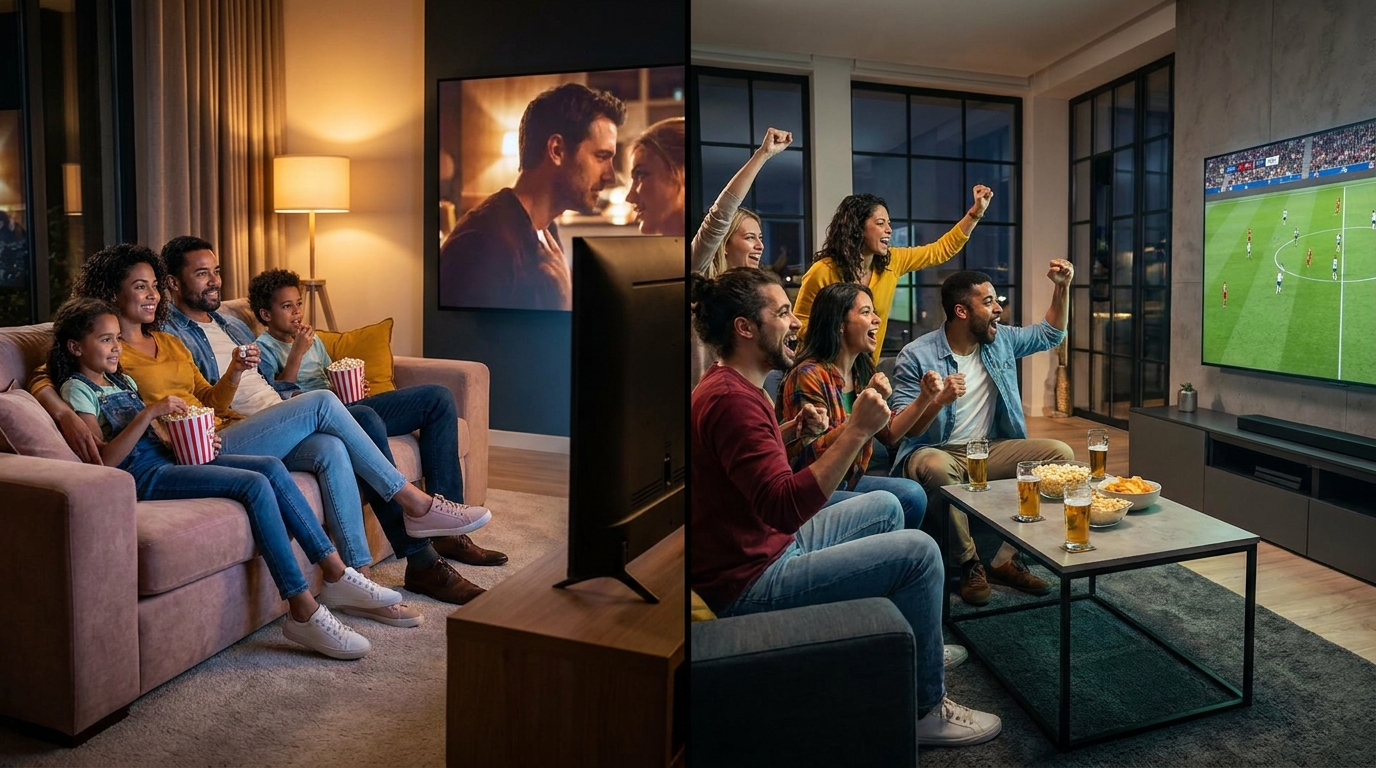
With a Talktomytv subscription, you gain access to a world of entertainment that is simply unmatched. From every live Premier League game to the latest blockbuster movies and binge-worthy series from around the globe, our library is curated to satisfy every viewer. We eliminate the need for multiple subscriptions by consolidating everything into one affordable plan.
Comparison: Talktomytv vs. Generic IPTV Services
To truly understand the value we offer, see how Talktomytv compares to the average, often unreliable IPTV services found online:
| Feature | Talktomytv | Generic/Free IPTV Providers |
|---|---|---|
| 4K & FHD Streams | Yes, on all premium channels | Limited or upscaled SD |
| Integrated VOD Library | Full Netflix, Prime & Disney+ catalogues | Outdated or no VOD |
| 7-Day Catch-up TV | Yes, on most major channels | Rarely offered or unreliable |
| 24/7 PPV Events | Included at no extra cost | Often an extra charge or unavailable |
| Customer Support | 24/7 Live Chat & Ticket Support | Email only, slow responses |
| Server Stability | High-performance, anti-buffering network | Overloaded servers, constant freezing |
Ready to Get Started?
Making the switch to a superior viewing experience is easy. We offer several plans designed for flexibility and value. Whether you want to try for a month or save big with an annual subscription, there’s an option for you. Explore our to find the perfectt fit.
Your search for the best IPTV app for Roku ends not with an app, but with a premium service. Talktomytv provides the content and quality, while your Roku and smartphone provide the platform. By using the simple screen mirroring method, you can unlock a universe of live TV, sports, and movies on your Roku device today. Don’t settle for a limited selection or unreliable streams. Elevate your entertainment by choosing Talktomytv. Sign up now and take your viewing to the next level!
References
Choose Your Talktomytv Plan
All plans include instant activation, 24/7 support, and a money-back guarantee.
Frequently Asked Questions
Can I install an IPTV app directly on my Roku device?
No, the Roku OS is a closed system that doesn’t allow direct installation of most third-party IPTV apps. The best method is to use a premium service like Talktomytv on your smartphone or PC and use Roku’s built-in Screen Mirroring (or AirPlay) feature to display it on your TV.
What is the best IPTV app for Roku to watch live sports like the Premier League?
The ‘app’ is on your phone or computer, and the service is what matters. Talktomytv is the best choice for live sports, offering access to all Premier League matches, F1, UFC, and more. You simply mirror the stream from your device to your Roku for a big-screen experience.
Is it legal to use IPTV on Roku in the UK?
Using IPTV is legal, but the legality depends on the service provider and the content they are licensed to stream. It’s crucial to choose a reputable and established provider. Talktomytv focuses on delivering a high-quality, reliable service for our customers.
How do I set up Talktomytv on my Roku device?
The setup is simple. First, subscribe to a Talktomytv plan. Then, install a compatible IPTV player app on your Android, iOS, or Windows device and log in. Finally, use the Screen Mirroring or AirPlay function on that device to cast the stream wirelessly to your Roku. Ensure both devices are on the same Wi-Fi network.
Does Talktomytv offer a TV guide (EPG) when used with Roku?
Yes. The full Electronic Programme Guide (EPG) is displayed within the IPTV app on the device you are casting from (your phone, tablet, or computer). You can browse channels and see what’s on, and whatever you select will then be mirrored to your Roku and TV screen.
{“@context”:”https://schema.org”,”@type”:”FAQPage”,”mainEntity”:[{“@type”:”Question”,”name”:”Can I install an IPTV app directly on my Roku device?”,”acceptedAnswer”:{“@type”:”Answer”,”text”:”No, the Roku OS is a closed system that doesn’t allow direct installation of most third-party IPTV apps. The best method is to use a premium service like Talktomytv on your smartphone or PC and use Roku’s built-in Screen Mirroring (or AirPlay) feature to display it on your TV.”}},{“@type”:”Question”,”name”:”What is the best IPTV app for Roku to watch live sports like the Premier League?”,”acceptedAnswer”:{“@type”:”Answer”,”text”:”The ‘app’ is on your phone or computer, and the service is what matters. Talktomytv is the best choice for live sports, offering access to all Premier League matches, F1, UFC, and more. You simply mirror the stream from your device to your Roku for a big-screen experience.”}},{“@type”:”Question”,”name”:”Is it legal to use IPTV on Roku in the UK?”,”acceptedAnswer”:{“@type”:”Answer”,”text”:”Using IPTV is legal, but the legality depends on the service provider and the content they are licensed to stream. It’s crucial to choose a reputable and established provider. Talktomytv focuses on delivering a high-quality, reliable service for our customers.”}},{“@type”:”Question”,”name”:”How do I set up Talktomytv on my Roku device?”,”acceptedAnswer”:{“@type”:”Answer”,”text”:”The setup is simple. First, subscribe to a Talktomytv plan. Then, install a compatible IPTV player app on your Android, iOS, or Windows device and log in. Finally, use the Screen Mirroring or AirPlay function on that device to cast the stream wirelessly to your Roku. Ensure both devices are on the same Wi-Fi network.”}},{“@type”:”Question”,”name”:”Does Talktomytv offer a TV guide (EPG) when used with Roku?”,”acceptedAnswer”:{“@type”:”Answer”,”text”:”Yes. The full Electronic Programme Guide (EPG) is displayed within the IPTV app on the device you are casting from (your phone, tablet, or computer). You can browse channels and see what’s on, and whatever you select will then be mirrored to your Roku and TV screen.”}}]}